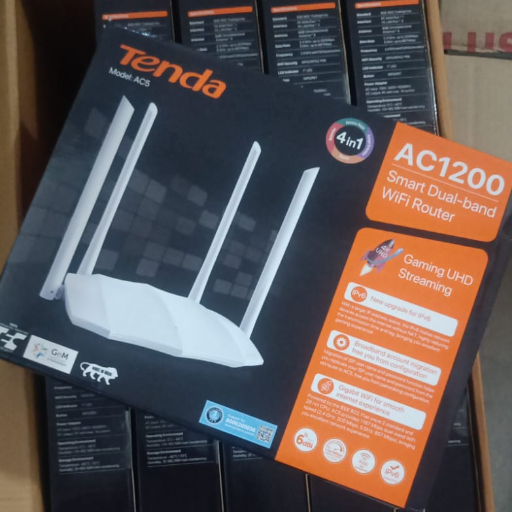
Tenda Ac1200 smart dual Band Wifi Router
🔹 Short Description (for quick view) “Tenda AC1200 Smart Dual Band WiFi Router – High-speed wireless router with dual band (2.4GHz + 5GHz), stable connectivity, smart app control, and wide coverage. Perfect for home and office internet needs.”
Product Details
🔹 Full Description (detailed)
The Tenda AC1200 Smart Dual Band WiFi Router delivers fast, stable, and secure wireless internet for both home and office use. With dual-band technology (2.4GHz & 5GHz), it ensures seamless connectivity for browsing, streaming, and gaming.
✅ Key Features:
Dual Band Speed: Up to 1200 Mbps for smooth internet experience
Smart App Control: Easy setup and management with Tenda WiFi app
Wide Coverage: Powerful antennas ensure strong signal throughout your space
Stable Connection: Ideal for multiple devices connected at the same time
Secure Network: Advanced WPA/WPA2 encryption for safety
Compact Design: Sleek and modern design to fit any space
✅ Best For:
Home WiFi setup
Office connectivity
Streaming, gaming, video calls
Multi-device households
💰 MRP (Including GST): ₹1050
Features & Benefits
1. Affordable Pricing – Tenda routers are usually budget-friendly compared to other brands, making them ideal for home or small office use.
2. Easy Setup – Most Tenda routers come with a simple installation process, often with an app or web interface for quick setup.
3. Stable Wi-Fi Coverage – Tenda routers provide reliable Wi-Fi signals with good coverage for small to medium-sized homes.
4. Decent Speed – They offer sufficient internet speeds for daily activities like browsing, streaming, video calls, and light gaming.
5. Multiple Device Support – Tenda routers can handle multiple devices connected simultaneously, which is useful for families or offices.
6. Parental Controls & Security – Many models include features like parental controls, guest networks, and WPA/WPA2 encryption to secure your network.
7. Compact Design – Tenda routers are often compact and easy to place anywhere without taking much space.
8. App Management – Certain Tenda routers have a mobile app (Tenda Wi-Fi) for monitoring connected devices, setting up guest networks, or scheduling Wi-Fi access.
How to Use
1. Unboxing & Hardware Setup
Take out the router, power adapter, Ethernet cable, and user manual.
Connect the power adapter to the router and plug it into a wall socket.
Connect the WAN/Internet port (usually blue) to your modem or ISP cable using an Ethernet cable.
Optional: Connect your computer to a LAN port (usually yellow) with an Ethernet cable for setup.
---
2. Power On
Turn on the router (if it has a switch).
Wait for the LED lights to stabilize (usually takes 1–2 minutes).
---
3. Connect to Wi-Fi
Find the default Wi-Fi name (SSID) and password printed on the router or in the manual.
On your phone or computer, select the Wi-Fi network and enter the password.
---
4. Router Configuration
1. Open a web browser and enter the router’s default IP address (usually 192.168.0.1 or 192.168.1.1).
2. Log in using the default username and password (often admin/admin).
3. Follow the setup wizard:
Choose Internet type (DHCP, PPPoE, Static IP) based on your ISP.
Set a new Wi-Fi name (SS
ID) and password for security.
Save settings.


 Select Date
 08:00 AM - 08:30 AM, Thursday, Nov 24, 2024
 Indian Standard Time
 Shahanab