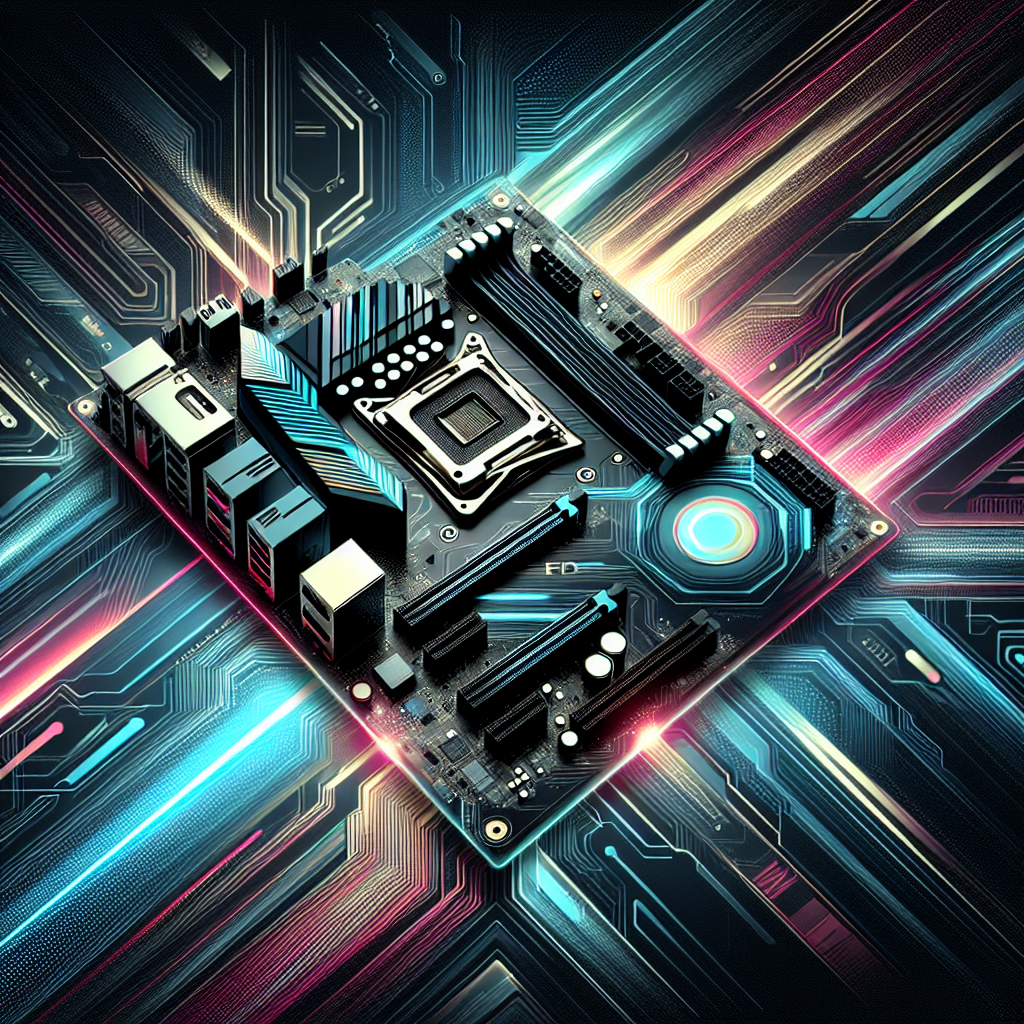
Zebronics Motherboard High-Speed Gaming & Multitasking Board

Upgrade your computer with the high-performance Motherboard Zebronics for seamless multitasking and enhanced gaming experience.


₹ 3500 0% off
₹ 0

The Zebronics motherboard is designed for users who want smoother performance, whether for gaming, office work or everyday entertainment on a reliable PC. Compatible with popular Intel chipsets like H110, H81 and H61, it delivers stable power, efficient cooling support and essential connectivity for modern builds and upgrades. Gamers, students and professionals can enjoy seamless multitasking, quick boot times and responsive performance for daily tasks and heavy workloads. Easy BIOS access and a clear layout make it suitable even for first-time PC builders who want simple installation. This Zebronics motherboard is a reliable choice if you want a budget-friendly upgrade without compromising on core features at PLOT NO-688 PO-SONUA, Sonuan, Jharkhand, 833105.

Supports popular Intel chipsets H110, H81 and H61
Optimized for smooth gaming and everyday multitasking
Stable power delivery for long-lasting performance
Multiple connectivity ports for modern peripherals
User-friendly BIOS for easy configuration
Great Zebronics motherboard price for budget builds

Power off your PC and unplug it. Open the cabinet and carefully remove the old motherboard if present. Mount the Zebronics motherboard on standoffs, then connect CPU, RAM, storage and PSU cables. Attach front panel connectors, reinstall GPU if any, close the cabinet, power on and configure BIOS settings.

For most Zebronics motherboard models, the BIOS key is usually the Delete (Del) key, pressed repeatedly as soon as you power on the PC. On some older boards, it can be F2. Check the motherboard manual or on-screen startup prompt for the exact key for your specific Zebronics board.

The common boot key for a Zebronics motherboard is typically F8 or F12, pressed during the initial startup logo. This opens the Boot Menu so you can select USB, hard drive or SSD. If these do not work, refer to the user manual or try checking the on-screen instructions during boot.

The BIOS for a Zebronics motherboard controls hardware settings like boot order, CPU options and memory configuration. To update the BIOS, visit the official Zebronics website, search your exact motherboard model, download the latest BIOS file and follow their instructions carefully to avoid interruption during the flashing process.

To change BIOS settings on a Zebronics motherboard, restart your PC and press the BIOS key, usually Del or F2, at startup. Once inside, use arrow keys or mouse to adjust boot order, enable XMP, set date and time, or configure CPU and fan options. Save changes before exiting to apply settings.

To check Zebronics motherboard warranty, first locate the product serial number on the board or box. Visit the official Zebronics support or warranty page and enter the serial details, or contact their customer care with purchase invoice. They can confirm remaining warranty period and applicable service options for your model.